Offers integration
Your listings exist on Octopia. This is where you say at what price you sell them, in what quantity, and under what terms.
The product is the listing — shared by every seller who trades on it. The offer is yours: your price, your stock, your condition, your delivery time. Two sellers on the same listing carry two different offers, and that's exactly what a marketplace is.
The listing must exist first
An offer attaches itself to a listing. Push your products before your offers, or there is nothing for them to attach to.
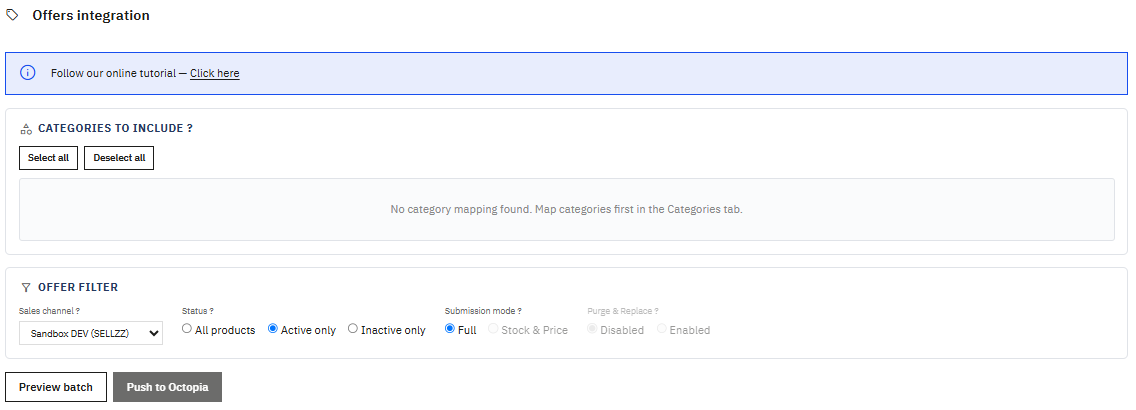
Choosing what to send
Categories to include lists only the categories you mapped to a profile in the Categories tab. If it's empty, nothing is mapped yet — that tab is where to start.
Everything an offer carries comes from that chain: the model says what the marketplace expects, the profile sets the price and delivery rules, and the category ties your products to it. What you send here is the result.
Sales channel is where the batch goes. Only the channels you're actively subscribed to appear. If the list is empty, visit the dashboard once — that's where your subscriptions are read.
Status filters on the PrestaShop side. Active only is the sensible default: an inactive product has no business being on sale.
Full or Stock & Price
Two modes, and they don't do the same job.
Full sends the complete offer for the selected channel — price, stock, condition, delivery terms, comment, everything the profile and the product overrides produce. It's what you use to publish an offer, and to rebuild everything when your terms change.
Stock & Price sends only the quantity and the price. Nothing else moves. It's far lighter, which is what makes it usable several times a day.
Stock & Price is Cdiscount only
That mode exists on Cdiscount (CDISFR) alone, by Octopia's own design — and it ignores the channel selector. The other channels only take Full offers.
The rhythm that works
Full once a day to rebuild everything, Stock & Price every hour to keep quantities and prices in step. Both can run on their own from the Cron tab, which is where this screen ends up once you're happy with it.
Purge before insertion
There is one switch that deserves its own reading.
Purge removes from Cdiscount every offer absent from this batch, before inserting the new ones. Its purpose is to clean up: offers on products you no longer sell, listings you've withdrawn, leftovers from an old catalog.
Purge unpublishes everything you didn't send
Read the batch as the complete picture of what you sell, because that's how Cdiscount will read it. Send one category with Purge enabled and every offer outside that category is unpublished.
If you use it, send your whole catalog in the same batch. And like Stock & Price, Purge is Cdiscount only — the Octopia channels ignore it.
Preview, then push
Preview batch validates everything locally, without uploading anything. It isn't optional: Push to Octopia stays disabled until a preview exists.
That's where you find out what would fail before the marketplace sees it — a product with no price, a delivery mode with no tariff, a required attribute the model is missing. Fix, preview again, then push.
Push to Octopia builds the packages and uploads them. Only the entries marked Valid go; the module tells you how many are being left behind before you confirm.
Push history
Every batch is recorded, with what was sent and what Octopia answered.
Sending isn't accepting: the marketplace validates on its side and returns a status per offer, which arrives shortly after. Refresh the reports to see them.
Click a status to filter the list on it, click again to clear. Click a product to open it in PrestaShop.
Clear history wipes the records of this account permanently — your log only, nothing on Octopia's side.
Multi-account
The categories offered, the channels listed, the offers built and the whole history belong to the active account.
The same product can therefore be on sale twice, on two accounts, at two different prices — each account carries its own profile, its own overrides and its own subscriptions. Switch account and the screen reloads with that account's own catalog.
Next step
Orders — your offers are live; here is what happens when someone buys.