Product overrides
A profile sets the rules for a whole category. Product overrides are where you depart from them for one product in particular — a different title, a forced price, a shipping cost of its own.
You'll find the panel on the product page itself, in the Octopia tab. Everything you set there concerns that product alone, and everything you leave empty keeps following its profile.
Save the product first
On a product that has never been saved, the panel asks you to save before configuring anything. It needs the product to exist in PrestaShop before it can attach an override to it.
Variations & synchronization
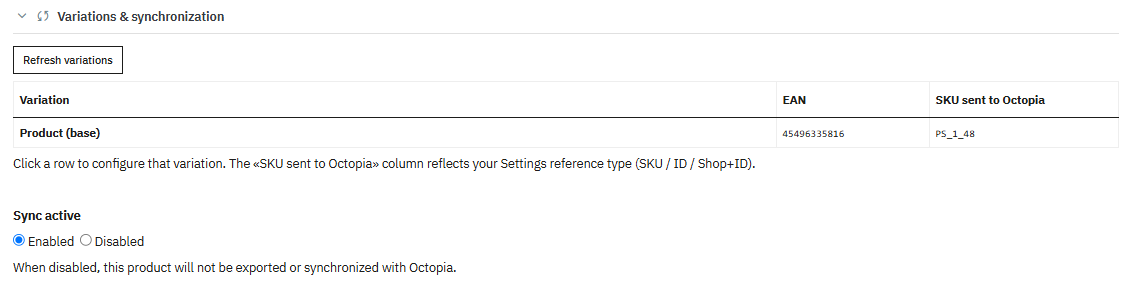
The table lists the product and its variations, with the EAN of each and the SKU sent to Octopia.
That last column is worth a look: it shows the reference the marketplace will actually receive, built from the reference type you chose in Settings — SKU, ID or Shop+ID. If it isn't what you expected, the setting to change is there, not here.
Click a row to configure that variation on its own. Each variation carries its own override, so a single product can be priced or described differently depending on the size or colour.
Refresh variations reloads the list after you've added or removed combinations in PrestaShop.
Sync active is the switch that matters most. Disabled, this product is never exported or synchronised with Octopia — whatever its category or profile says.
The quickest way to pull a product
Rather than unchecking a whole category, switch Sync active off on the one product you don't want on the marketplace. Everything else keeps running.
Listing content
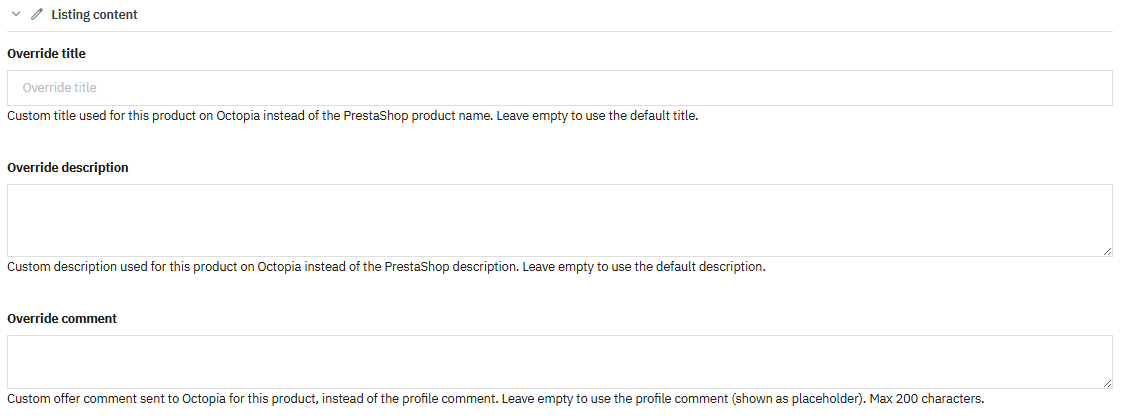
Three fields to say it differently on the marketplace than in your shop.
Override title replaces the PrestaShop product name on Octopia. Useful when the marketplace expects a format your shop doesn't use — brand and model first, for instance.
Override description does the same for the description.
Override comment replaces the offer comment coming from the profile. It's capped at 200 characters, and the profile comment is shown as a placeholder so you can see what you're replacing.
All three follow the same rule: leave empty and the default applies — the PrestaShop content for the first two, the profile comment for the third.
Pricing, stock & alignment
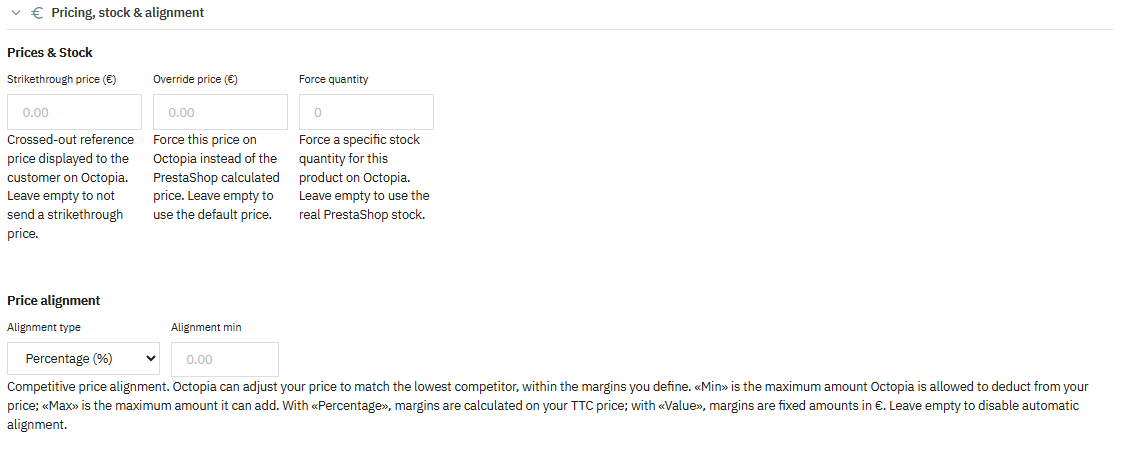
Strikethrough price is the crossed-out reference price shown to the customer. Leave it empty and no strikethrough price is sent at all.
Override price forces a price on Octopia instead of the one PrestaShop calculates. Everything the profile would have applied — rules, rounding — is bypassed for this product.
Force quantity forces a stock quantity instead of your real PrestaShop stock. Use it sparingly: a quantity that doesn't reflect reality is how you end up with an order you can't fulfil.
Price alignment lets Octopia adjust your price to match the lowest competitor, within margins you define. Min is the most it may deduct from your price, Max the most it may add. With Percentage the margins are computed on your gross price; with Value they're fixed amounts in euros. Leave empty to disable automatic alignment for this product.
Alignment moves your price
Alignment is the one setting here that lets someone else decide what you charge. Set a Min you can actually live with — it is the floor below which your price will never go.
Eco-taxes & product condition
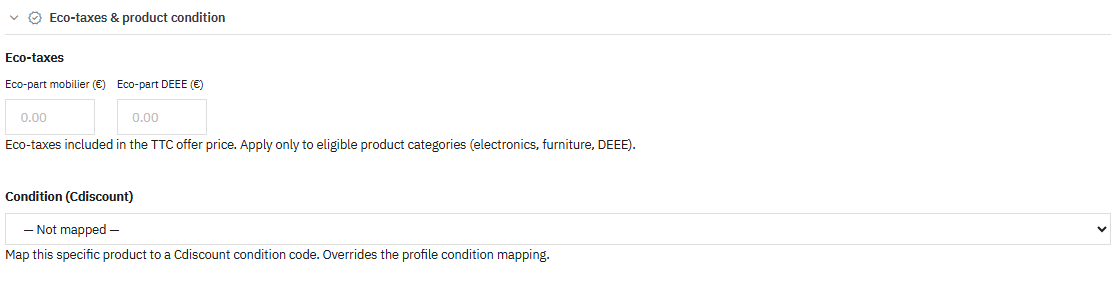
Eco-part mobilier and Eco-part DEEE are included in the gross offer price. They only apply to eligible categories — electronics, furniture, WEEE — so leave them empty for everything else.
Condition (Cdiscount) maps this product to a Cdiscount condition code, overriding the condition mapping of its profile. It's what you reach for when one product is refurbished while the rest of its category is new.
Delivery & shipping costs
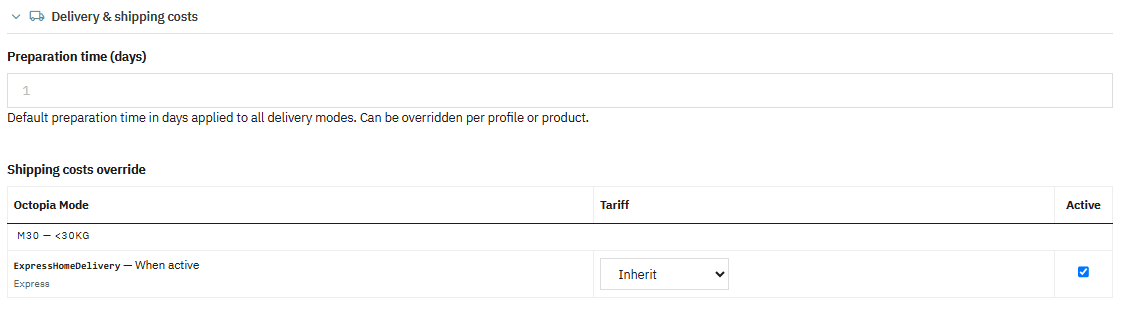
Preparation time in days, applied to every delivery mode of this product. It overrides the profile value, which itself overrides the account-wide one set in Transport.
Shipping costs override lists the active delivery modes with, for each, a Tariff and an Active checkbox.
The tariff dropdown offers Inherit by default — meaning this product follows its profile, which follows Transport. Choose something else and this product stops following the chain for that mode.
Nothing to show here?
If the table is empty, no delivery mode is active yet. Set them up in Transport first — this panel only lists modes that already exist.
How the three levels stack
The same setting can be defined in three places. The nearest one wins:
Product override → Profile → Transport or Settings
Which is why nearly every field here can be left empty: an empty field isn't a missing value, it's a way of saying keep following the level above.
Save
Click Save to store the override. It's attached to the product and to the active account: another account on the same shop keeps its own overrides for that product, or none at all.
Next step
Products integration — push your catalog to Octopia and follow what the marketplace makes of it.