Messaging
Marketplace buyers don't have your email address. They write to you through the marketplace, and this is where those conversations land — read and answered from PrestaShop, without a second tab open.
Finding a discussion
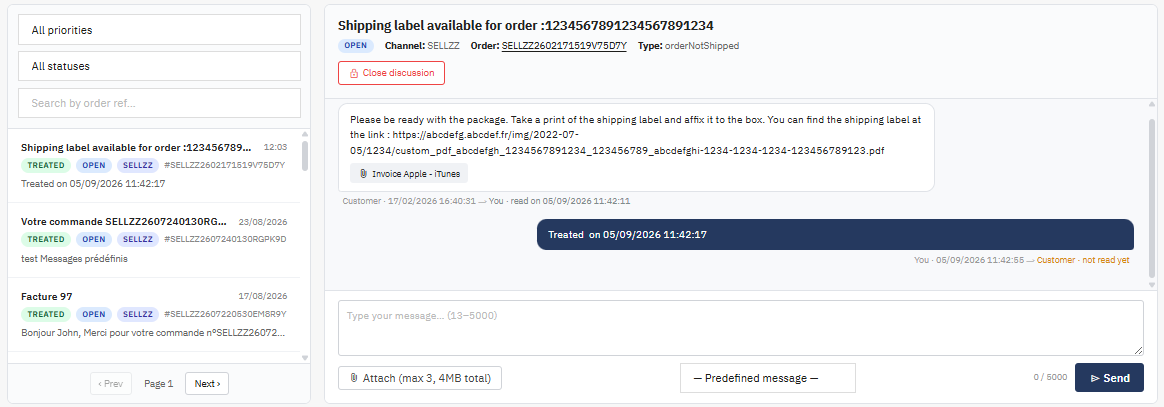
The list on the left holds your conversations, most recent first. Search by order ref narrows it down when you're looking for one in particular.
Each entry carries its type:
- Standard conversation — an ordinary exchange with a buyer.
- Escalated claim — the marketplace has stepped in. These are the ones to answer first: a claim left unanswered is held against you.
Select a discussion on the left and its messages appear on the right.
Answer claims first
Marketplaces measure how fast you reply, and an escalated claim carries a deadline. Sorting by type before you start is the simplest way to protect that score.
Reading a thread
Messages are shown in order, and each one says who wrote it: you, the customer, or Marketplace support when the marketplace itself has intervened.
Under each message, you can also see who it was addressed to and whether they've read it yet — useful when you're wondering if a reply has actually reached the buyer.
Attachments sent with a message can be downloaded from the thread. View order details opens the order the discussion is about.
Opening a discussion marks everything waiting in it as read, which is when a message is really read.
Replying
Type your reply in the box at the bottom and send it.
A message must be between 13 and 5000 characters. That lower bound is the marketplace's: a two-word answer is refused.
Predefined message loads a ready-made text into the box, which you can then adjust. It replaces what's already typed, so the module asks before overwriting anything.
Attach adds files to your message — up to 3, 4 MB in total. That's a marketplace limit, not the module's.
Closing and reopening
Close discussion ends the exchange when the matter is settled. A closed discussion stays readable but takes no new message.
Reopen discussion brings it back if the buyer comes back on the subject, or if you closed it too soon. Both actions ask for confirmation, since they change what the buyer sees on their side.
Multi-account
Discussions belong to the active account — you're reading one mailbox at a time, the one of the account currently selected.
Opening a discussion from an order does something worth knowing: the module switches to that order's account, so you're always reading the right mailbox. The account you were on is remembered and comes back as soon as you open another screen of the module. Picking an account yourself ends the detour.