Orders
Someone bought. This is where the sale becomes an order in your back office, handled like any other — same screens, same workflow, same invoices.
The module doesn't keep marketplace orders on the side: it imports them as native PrestaShop orders, with their customer, their address and their products. What you do afterwards, you do in PrestaShop.
Statuses come from Settings
An imported order needs to land on one of your own statuses, and a shipment needs to be recognised when it leaves. That mapping between Octopia statuses and PrestaShop statuses is set once in Settings — do it before your first import.
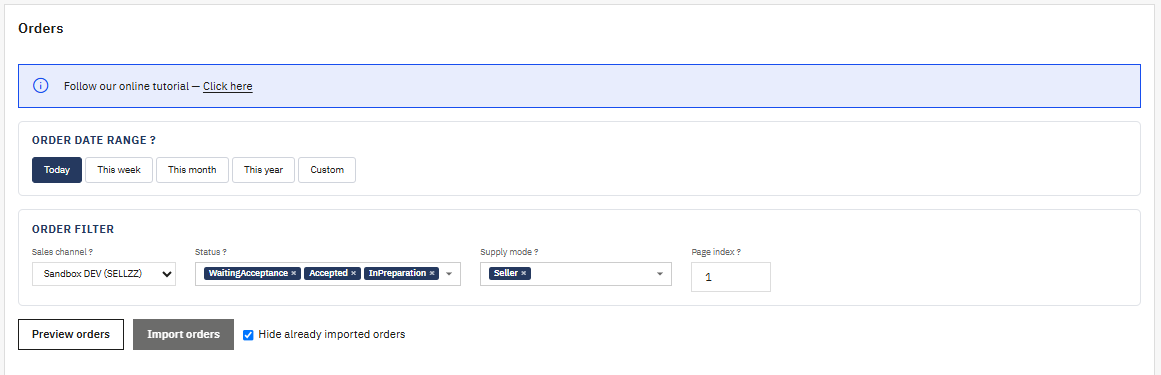
Choosing what to import
Creation date range filters on the date the order was created on Octopia. Leave the first field empty to start from the oldest, the second to go up to today.
Sales channel narrows the import to one marketplace. Only the channels you're actively subscribed to appear; if the list is empty, visit the dashboard once.
Order statuses is where you pick which Octopia statuses to fetch — Processing, Shipped, and so on. At least one is required, and the usual choice is the statuses that mean this order is mine to prepare.
Logistics process separates the two ways an order is fulfilled: Seller when you ship it yourself, Fulfillment when Octopia ships from its warehouses. At least one must be selected.
Page controls pagination. Start at 1 for the most recent orders, and increase it to reach older pages.
Hide already imported orders clears from the list everything already in PrestaShop, which is what you want most of the time.
Preview, then import
Preview lists the orders matching your filters without importing anything. It's required: the import button stays disabled until a preview exists.
The list shows what would come in, and marks the orders already imported in PrestaShop so you can see at a glance what's new. Tick the ones you want — or use the select-all — and click View order details on any line to see what it contains before deciding.
Import creates the selected orders as native PrestaShop orders.
Let the cron do it
Importing by hand is useful the first time, and when you're catching up on something. Day to day, the orders import cron does it every 15 to 30 minutes on its own — that's what decides how quickly a new order reaches you.
What comes with the order
Each imported order carries an Octopia panel on its PrestaShop order page. That's where you find its marketplace reference, its channel, and the actions the module can perform on it: declaring the shipment, contacting the buyer, handling the invoice.
The shipment you declare from there goes back to Octopia with its tracking number. And if the status is changed by something else — a script, another module, an import — the shipments cron catches it and declares it anyway.
Multi-account
The channels offered, the orders fetched and everything imported belong to the active account. Each order stays attached to the account it came from, so the actions performed on it always use the right credentials — even when you're looking at another account at the time.
Next step
Messaging — talk to your buyers about their orders, without leaving PrestaShop.