Products integration
This is where your catalog leaves for Octopia. You pick which products go, check the batch, send it, and follow what the marketplace made of each one.
A product is the listing — title, brand, category, attributes. It's not your price or your stock: those travel in the offer, which comes afterwards. Creating the listing first is what gives your offer somewhere to attach itself.
Three things must be in place first
A product only leaves if it belongs to a category you mapped, that category carries a profile, and that profile rests on a model. The full chain is Model → Profile → Category → Product.
Choosing what to send
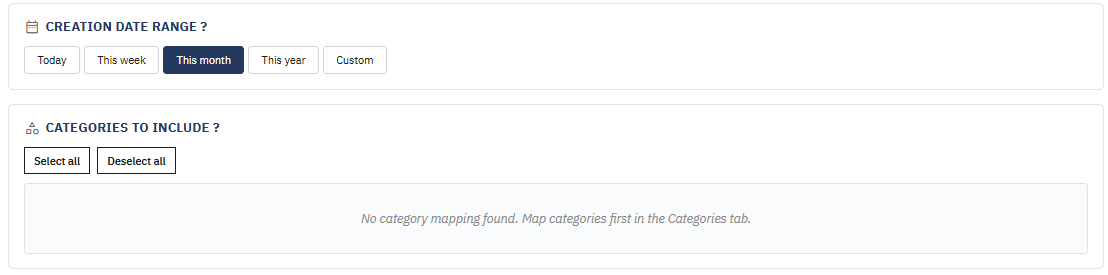
Creation date range filters by the date the product was created in PrestaShop — not by when you last edited it. Today, This week, This month and This year cover the usual cases; Custom opens two date fields, and leaving one empty means no limit on that side.
Categories to include lists only the categories you mapped to a profile. If it's empty, nothing is mapped yet — go to Categories first, this screen has nothing to work with until then.
Select all and Deselect all save you the clicking on large trees.
Start narrow
On a first push, pick one category and a short date range. You'll see how Octopia responds to your data before committing your whole catalog to it.
Product filter
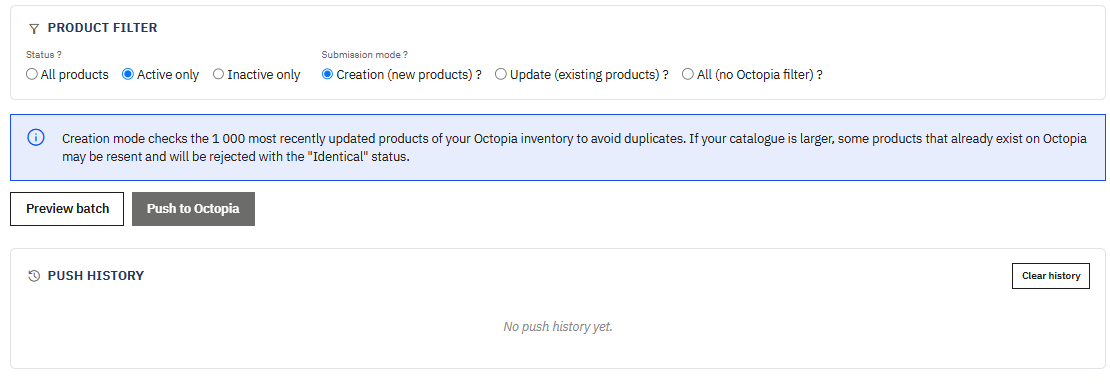
Status filters on the PrestaShop side. Active only is the sensible default: an inactive product is usually out of stock or hidden on purpose, and there's little sense in listing it on a marketplace.
Submission mode decides what the module does with products Octopia may already know:
| Mode | What it sends |
|---|---|
| Creation | Only products not yet on Octopia. Existing ones are skipped, so nothing is duplicated. |
| Update | Only products already on Octopia, to refresh their data. Products you can't edit are skipped silently. |
| All | Everything, without checking Octopia first. Faster, but noisier. |
Large catalogs and the 1 000 limit
Creation and Update modes check the 1 000 most recently updated products of your Octopia inventory. Beyond that, the check is blind: in Creation mode some existing products may be resent and come back as Identical; in Update mode some existing products may be seen as absent and simply not updated.
It isn't a failure — nothing is lost or broken. But on a catalog larger than a thousand references, push by category rather than all at once.
Preview, then push
Preview batch validates everything without sending a thing. It's not optional: Push to Octopia stays disabled until a preview exists.
The preview is where you find out what would fail — a missing attribute the model requires, a category with no profile, a product without a barcode. Fix those, preview again, and only then push.
Push to Octopia sends every entry marked Valid. The invalid ones stay behind, and the module tells you how many are being left out before you confirm.
Variant categories
A category marked as a variant category pushes its products with all their combinations at once. That's usually what you want for clothing or anything sold in several sizes.
Push history
Every push is recorded here, with what was sent and what Octopia answered.
Sending is not the same as accepting. Octopia validates on its side and returns a status per product, which arrives a little after the push — Refresh reports fetches them.
Click a status to filter the list on it, click again to clear the filter. Click a product to open it in PrestaShop.
The statuses you'll meet most:
- Identical — the product already exists on Octopia with the same data. Nothing to do.
- Permission denied — the listing exists but someone else created it. You can't edit it; you can still sell on it through your offer.
- A validation error — something in your data doesn't suit the marketplace. The message says what.
Clear history wipes the records of this account permanently. It removes nothing on Octopia's side — only your log.
Multi-account
Everything on this screen belongs to the active account: the categories offered, the products that qualify, and the whole push history. Switch account and you get that account's own catalog and its own log.
A product can perfectly well be pushed to two accounts, with a different profile on each — that's the point of mapping categories per account.
Next step
Offers integration — now that your listings exist on Octopia, send the price, the stock and the delivery terms that go with them.