E-Invoicing
The E-Invoicing tab is where you decide who issues the invoices of your Octopia orders, and how they reach your buyers. Nothing here is imposed: the module can stay out of invoicing entirely, forward the invoice PrestaShop already issues, or let Abby issue it for you.
Choosing a source
Everything starts with one setting. The Source panel is always visible, and what you choose there decides which panel appears below it.

| Source | What the module does |
|---|---|
| None | Nothing at all. No invoice is created, none is sent, no action appears on your orders. |
| Standard invoice | The invoice PrestaShop issues is delivered to Octopia. The module doesn't create it — it forwards it. |
| Abby | Abby issues the invoice, and the module delivers it. |
Pick a source, click Configure, and the matching panel opens underneath.
Which one is right for you?
The PrestaShop invoice carries the identity of the shop itself — the right one as long as a single seller trades from it. Abby issues under the identity attached to the account, which is what several accounts on one shop require, and what the electronic invoicing reform will require.
Nothing is ever lost
Choosing None leaves invoicing out of the module, but nothing is erased: what was already traced stays readable on your orders, and picking a source again later resumes from that moment on.
Two delivery channels
Whichever source you use, the invoice reaches your buyer through one of two channels — and the marketplace decides which one, not you.
- Cdiscount takes the invoice attached to the order and refuses it in a discussion.
- Every other marketplace does the opposite: it takes the invoice in a discussion and has no place to attach it.
That's why the panel offers two switches rather than one. Each governs its own channel, and each has its own manual action on the order page — an action only ever appears for the orders its channel accepts, and only when its switch is enabled.
Enable both
Unless you sell on one marketplace only, leave both switches enabled. They never overlap: an order is served by one channel or the other, never by both.
Standard invoice
This panel forwards the invoice PrestaShop has already issued. There is nothing to create: the module picks it up as soon as your order reaches a status that carries one.
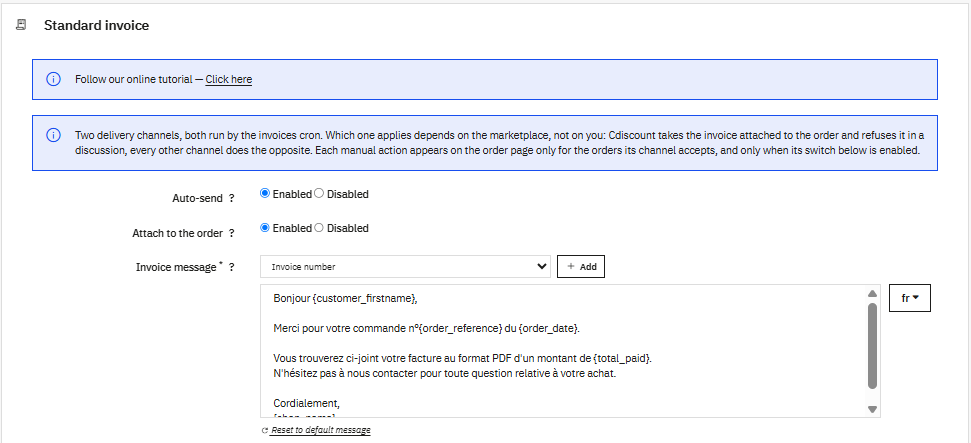
Auto-send governs the orders placed on a marketplace other than Cdiscount. When enabled, the invoices cron sends their invoice to the customer in an Octopia discussion, and the manual Send to the customer action appears on those orders.
Attach to the order governs the Cdiscount orders. When enabled, the cron uploads their invoice to Octopia and attaches it to the order, and the manual Attach to the order action appears on those orders.
Invoice message is the text accompanying the PDF sent to the customer. It's written per language — use the language selector on the right — and these variables are replaced when the message goes out:
{invoice_number} · {order_reference} · {order_date} · {total_paid} · {customer_firstname} · {customer_lastname} · {shop_name} · {sales_channel}
Reset to default message puts back the wording the module ships with, in the language currently shown.
From when?
The invoices cron only picks up what was invoiced since you activated the source. Turning it on doesn't queue months of past invoices for delivery. An older invoice can still be traced by hand: open its order and the module records it whatever its date.
Abby
Abby is a DGFiP approved platform. With this source, Abby issues the invoice and the module delivers it through the same two channels.

Abby API Key is the only thing to connect. Find it in Abby → Settings → Integrations → API Keys; it starts with suk-. The key is stored encrypted, and once saved the field shows only that a key is configured — enter a new one to replace it.
The delivery switches and the invoice message work exactly as they do for the standard invoice.
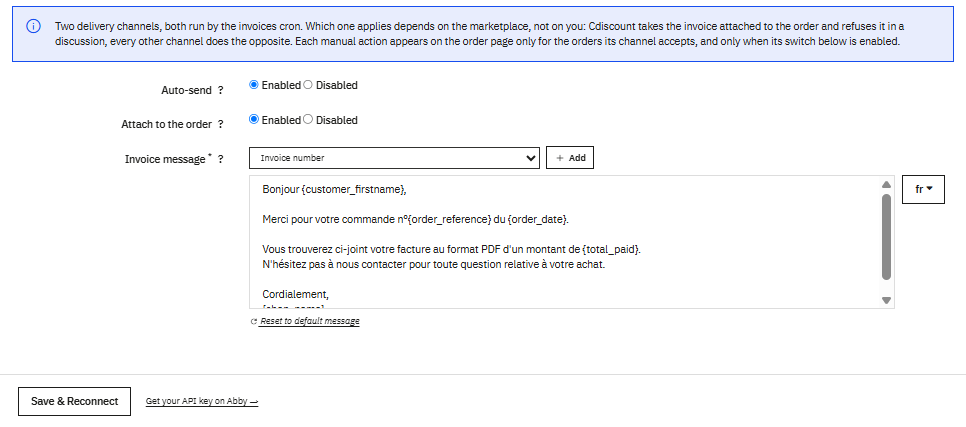
Click Save & Connect — or Save & Reconnect if a key was already stored. The module checks the key straight away and tells you what it can see with it.
One invoice per order
An order can only be invoiced once, whichever source issued it. If you switch source, an order already invoiced by the other one is left alone — your customer never receives two documents for a single purchase.
Manual actions
Whatever runs automatically, every invoice can also be handled by hand from the order page: send it to the customer, attach it to the order, download the PDF, or cancel it when Abby issued it.
Those actions follow the document, not the source currently selected. An invoice created by one source stays served by that source, even after you switch — so changing your mind never strands an invoice halfway.
Multi-account
Every setting on this tab belongs to the active account: the source, the two switches, the Abby key and the invoice message. Two accounts on the same shop can be invoiced in two different ways — one through Abby, the other through the standard invoice, or one not invoiced at all.
Switch account and the tab reloads with that account's own settings.
The identity question
This is where the choice of source matters most. The PrestaShop invoice carries the identity of the shop, which is the same for every account on it. If several sellers trade from one shop, Abby is the only source that issues under each seller's own identity.